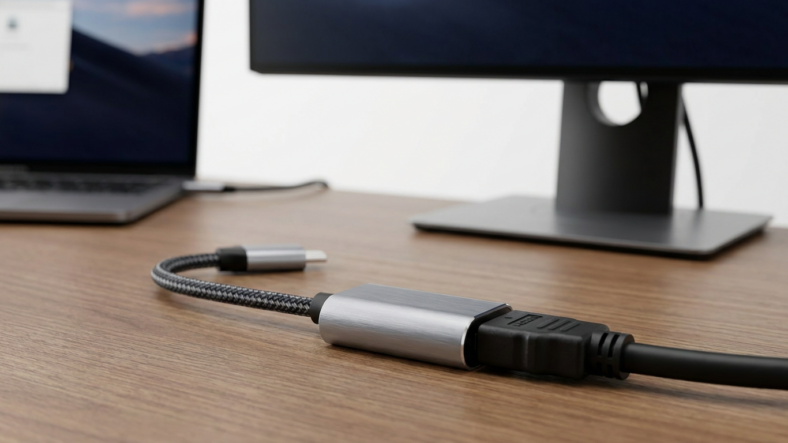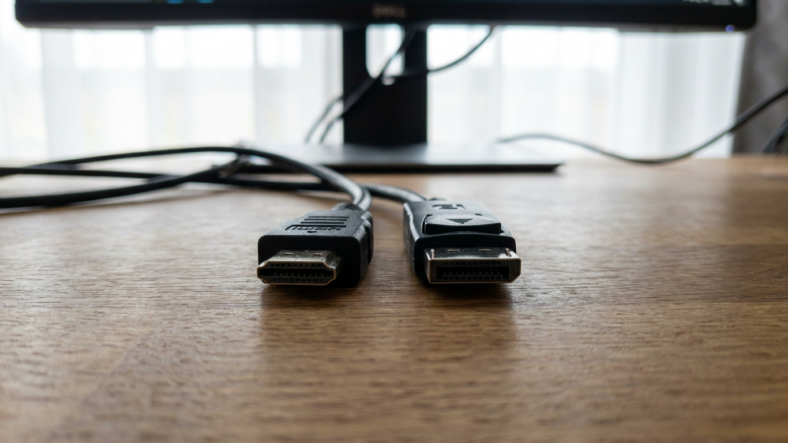


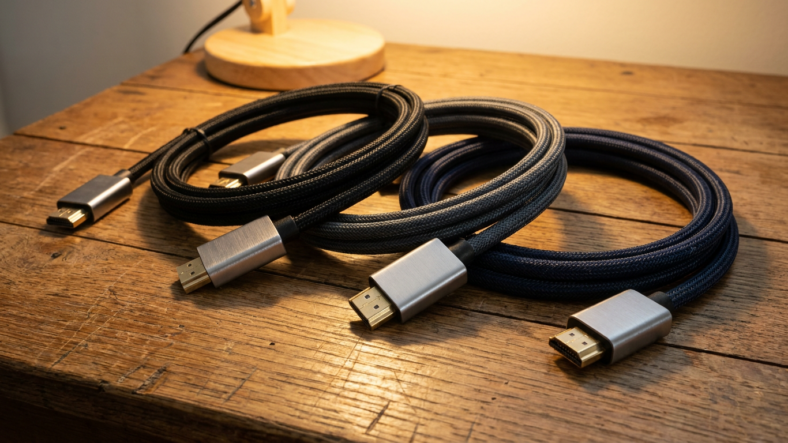
Two HDMI cords can look identical and still perform completely differently. The plug hasn’t changed shape since HDMI 1.3, but what’s inside the jacket has, which is why the old cord in your drawer might refuse to run 4K120 while a newer one handles it fine.
Blank screen, flickering, or a quiet drop to 1080p after plugging in an old cord? The cable is usually the problem. Here’s what actually differs between HDMI cord types.
HDMI Versions Set the Ceiling, the Cable Has to Match It
Version numbers like 1.4, 2.0, and 2.1 describe what a port can send. The cable has a separate job: carrying that signal without losing data.
HDMI 1.4 tops out around 10.2 Gbps, enough for 4K at 30Hz. HDMI 2.0 raised that to 18 Gbps, covering 4K at 60Hz. HDMI 2.1 jumped to 48 Gbps, enabling 4K at 120Hz, 8K at 60Hz, and variable refresh rate.
A cable rated for 10.2 Gbps between two HDMI 2.1 devices won’t suddenly carry 48 Gbps. It becomes the bottleneck, and the source quietly steps the signal down or the connection fails.
“High Speed” and “Ultra High Speed” Are Certifications, Not Marketing Words
HDMI cables are sold under certification labels, and each maps to a real bandwidth number.
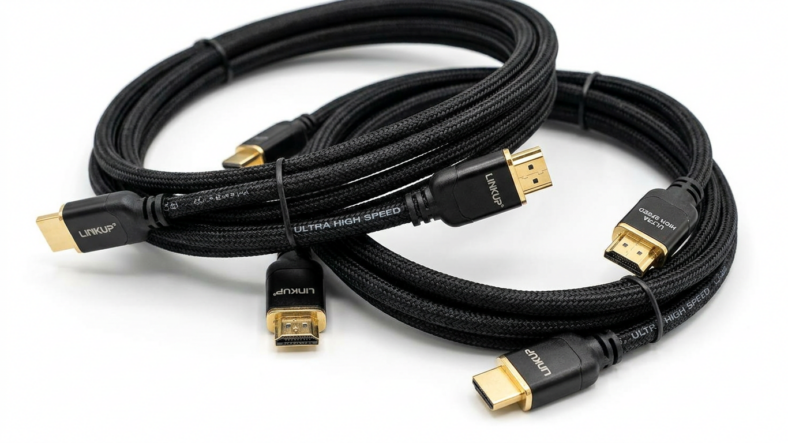
A High Speed HDMI cable is rated for 18 Gbps, matching HDMI 2.0. A Premium High Speed HDMI cable is also 18 Gbps but tested more rigorously for 4K HDR. An Ultra High Speed HDMI cable is rated for the full 48 Gbps HDMI 2.1 needs.
None of these labels change the connector, which looks identical across all three. They describe what’s inside: shielding, conductor quality, and how much data the cable was tested to move error-free.
Why 4K120 and 8K Expose a Weak Cable Fast
Lower resolutions are forgiving. A basic High Speed cable runs 1080p or 4K30 without complaint, since demand stays well under 18 Gbps.
4K at 120Hz needs close to the full 48 Gbps an Ultra High Speed cable provides. Push it through a cheaper cord and the TV typically auto-downgrades to 4K60 or 1080p with no warning.
8K video and high frame rate HDR behave the same way. If a newer console supports HDMI 2.1 and the picture still looks capped, swap the cable first.
Checking What You Already Have
Most HDMI cables print a certification on the jacket near the connector, though small text makes it easy to miss. If nothing is printed, length is a clue: cheap 15-foot or 25-foot cords bundled with old electronics are almost always basic High Speed, built for distance, not bandwidth.
The more reliable test is checking the display’s picture-quality menu, which usually shows the active resolution and refresh rate. If that number is lower than your source’s claimed output, the cable is the likely suspect.
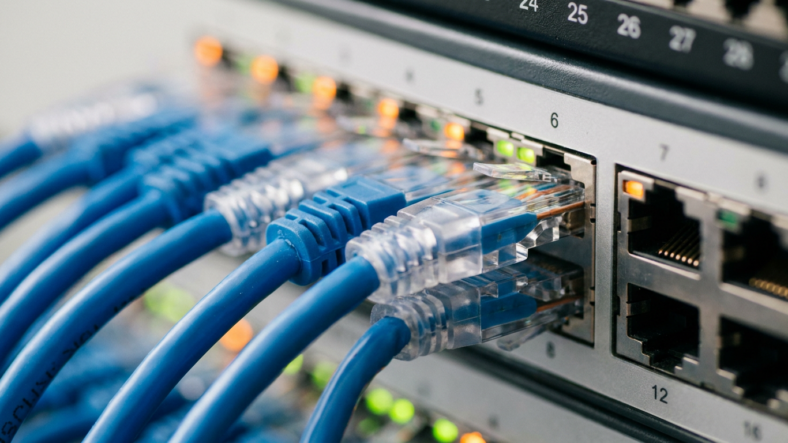
The same logic applies elsewhere in a home setup. A cat 6 ethernet cable that misses its rated speed causes the same quiet downgrade, and hardware between a source and a display, like an ethernet splitter or switch, needs to match the bandwidth around it. Routing devices through a hub? An ethernet switch explained guide covers the same “hardware matches the spec” problem.
Common HDMI Cord Questions
Does a pricier HDMI cord mean better performance?
No. Once a cable meets the certification your setup needs, gold plating or a thicker jacket adds nothing. Match certification to your resolution and refresh rate, not the price tag.
Can an Ultra High Speed HDMI cable work with an older HDMI 2.0 device?
Yes. It’s backward compatible and runs fine at 4K60 or 1080p, just not pushed past what the older device can send.
Why does my TV say “unsupported format” with certain HDMI cords?
It means the source is sending more data than the cable can carry, and the TV is rejecting the signal instead of downgrading it. An Ultra High Speed cable resolves it in most cases.

Adriana Mercado is a writer who explores the intersection of science, futurism, and storytelling. She covers simulation theory, emerging technologies, strange biological discoveries, and the worlds created in sci-fi and fantasy. Her work focuses on curiosity, clear explanations, and uncovering ideas that sit just beyond the mainstream.