

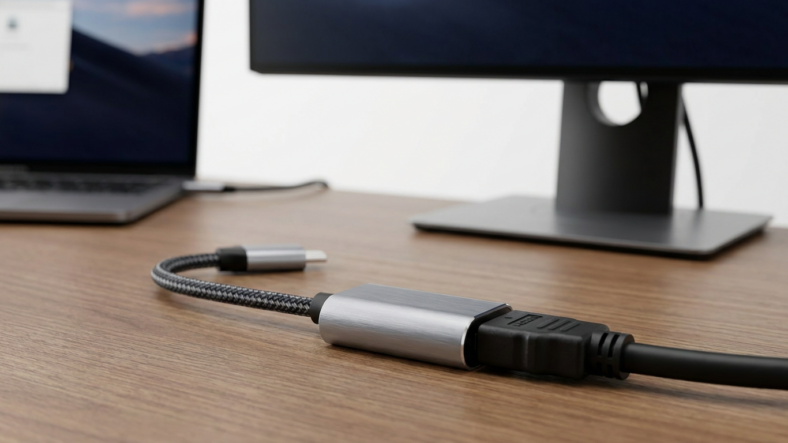
A USB to HDMI adapter turns a USB port into a video output using a small graphics chip, usually a DisplayLink chip, that captures your screen data and compresses it for transmission over USB. It is not a passive cable. The adapter plus a driver installed on your computer functions as its own external graphics device.
That distinction matters if you have ever plugged one in and gotten a black screen. Windows or macOS sees a plain USB-A port as data only, so the adapter needs software to register itself as a display.
What’s Actually Inside a USB-A to HDMI Adapter
Open one up and you will find a small controller chip, almost always from DisplayLink in the consumer space, sitting between the USB connector and the HDMI output. That chip receives compressed screen data over USB, decompresses it in real time, and generates a standard HDMI signal.
Your operating system treats the adapter as a virtual graphics card, rendering part of your desktop to a frame buffer before sending it down the cable. Nothing shows up on the second screen until the driver is installed.
Why USB-C to HDMI Adapters Skip the Chip Entirely
A USB-C to HDMI adapter usually works on a completely different principle: DisplayPort Alt Mode. If your laptop’s USB-C port supports it, that port can carry a native DisplayPort video signal alongside USB data, and the adapter simply converts that DisplayPort signal to HDMI.
No driver, no compression, no virtual graphics card. The video comes straight from your laptop’s own GPU, the same way it would through a native DisplayPort output. That’s why USB-C to HDMI adapters tend to feel more reliable.
Resolution and Refresh Rate Limits You Should Expect
DisplayLink-based USB-A adapters typically top out around 1080p at 60Hz, and budget models can struggle even there, since the chip compresses and decompresses video on the fly. Fast motion and gaming can show artifacts or input lag a direct connection wouldn’t have.
USB-C adapters running DisplayPort Alt Mode can often push 4K at 60Hz, limited mainly by your laptop’s GPU and the cable itself, not a compression chip. For a 4K monitor used beyond email and spreadsheets, the USB-C route is worth paying for.
When Each Adapter Type Is the Right Pick
Pick a USB-A to HDMI adapter when your laptop has no video-capable USB-C port and you need a basic second display for text work or presentations. It’s the cheaper, driver-dependent option, and it does that job fine.
Pick a USB-C to HDMI adapter whenever your laptop supports DisplayPort Alt Mode, which most machines sold in the past several years do. Check the spec sheet for “DisplayPort Alt Mode” or “USB4” first, since some USB-C ports handle charging and data only. If you’re also wiring up that workstation, the same logic applies to picking a cat 6 ethernet cable instead of grabbing whatever’s cheapest.
If you’re untangling a different adapter mismatch, the HDMI to DisplayPort adapter guide covers why direction matters when converting between those two standards. And if that second monitor sits on a separate network segment, our router vs modem breakdown explains what’s actually routing the traffic behind it.
Common Questions About USB to HDMI Adapters
Does a USB to HDMI adapter need drivers? A USB-A to HDMI adapter almost always needs one, usually from DisplayLink, since it functions as a virtual graphics card. A USB-C to HDMI adapter running DisplayPort Alt Mode typically needs no driver at all.
Can I use a USB to HDMI adapter for gaming? A DisplayLink-based USB-A adapter can introduce noticeable input lag, so it’s a poor match for gaming. A USB-C adapter with DisplayPort Alt Mode handles gaming much better since the signal skips compression entirely.
Why does my USB to HDMI adapter show a black screen? Usually a missing or outdated driver. The operating system has no idea the adapter is a display until that software registers it, and reinstalling the latest DisplayLink driver fixes this in most cases.

Adriana Mercado is a writer who explores the intersection of science, futurism, and storytelling. She covers simulation theory, emerging technologies, strange biological discoveries, and the worlds created in sci-fi and fantasy. Her work focuses on curiosity, clear explanations, and uncovering ideas that sit just beyond the mainstream.