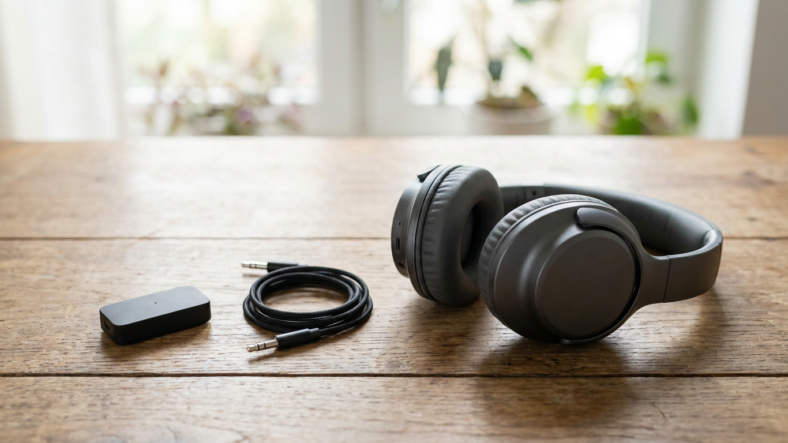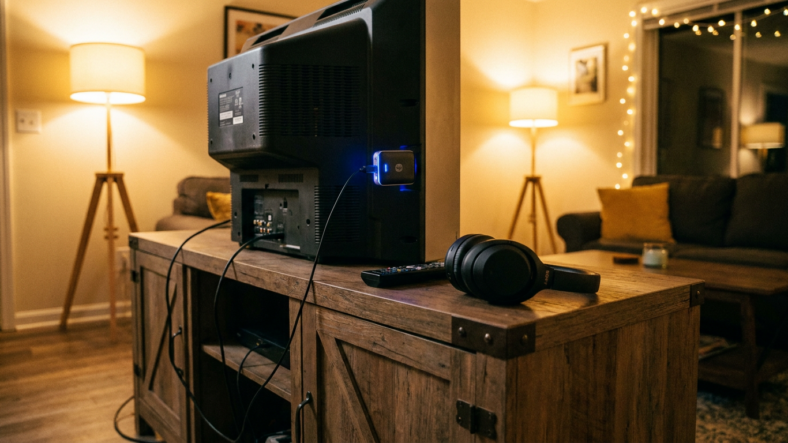


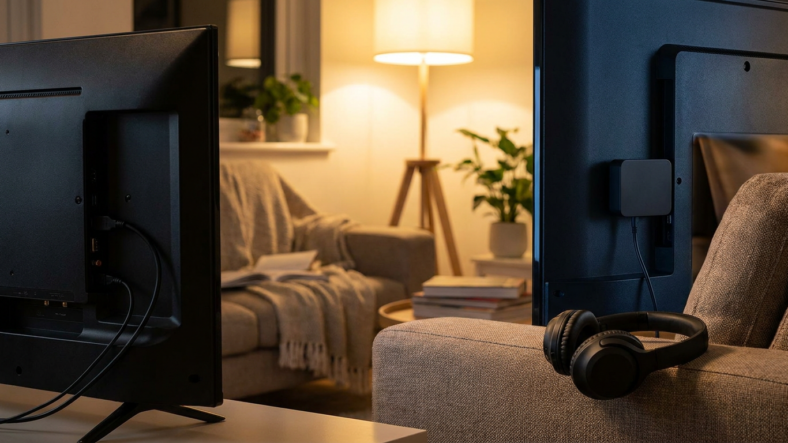
A bluetooth transmitter for TV plugs into your television’s audio output and streams the sound wirelessly to Bluetooth headphones, so you get a clear answer before buying anything: check your TV’s audio port first, because that port decides which transmitter will actually work.
Older televisions never got a Bluetooth chip, which is exactly why this device exists. Know your port and your latency needs, and setup takes about five minutes.
Check Your TV’s Audio Output Before You Buy Anything
Flip your TV around and look at the back or side panel. Most older sets have one of three outputs: an optical (TOSLINK) port, a 3.5mm headphone jack, or a pair of red-and-white RCA jacks.
Optical looks like a small square port with a plastic flap covering it. The 3.5mm jack is the same round port your old wired earbuds used. RCA is the two-color analog pair, common on older CRT and early flat-panel sets.
If you want the background on how transmitters and receivers differ in general, this bluetooth transmitter explained guide covers that groundwork.
Match the Transmitter to That Port
Every transmitter lists supported inputs on the box or spec sheet. Some units are optical-only. Others handle 3.5mm and RCA but need an adapter cable for optical, and that cable is not always included.
Confirm the transmitter accepts the exact port your TV has before you buy. A transmitter built for 3.5mm will not connect to an optical output without a separate converter.
If the real issue turns out to be a picture connection rather than sound, that is a different fix entirely. This rundown on HDMI cord types is worth a look if your TV signal itself is the problem.
Why Watching Video Needs Low-Latency Bluetooth
Standard Bluetooth audio carries a small delay between the picture and the sound. On a phone call, nobody notices. On a TV show, that delay shows up as dialogue landing just after the mouth moves.
This lip-sync gap is specific to video, and it is the single biggest complaint people have with cheap transmitters. The fix is a transmitter and a pair of headphones that both support aptX Low Latency.
Check the spec sheet on both ends before buying. If either your transmitter or your headphones lacks aptX Low Latency, you fall back to standard Bluetooth and the mismatch comes back.
Pairing and Placement Steps That Actually Work
Plug the transmitter into your chosen port and power it, either from a wall adapter or a USB port on the TV. Then check the TV’s audio output setting in the menu. Many sets mute the optical or headphone output until you switch off internal speakers.
Hold the pairing button on the transmitter until its light flashes, then do the same on your headphones. Both lights turning solid confirms the link.
Keep the transmitter in open air rather than tucked behind a dense media cabinet. Metal shelving weakens the Bluetooth signal, so a clear line to your headphones keeps the connection steady.
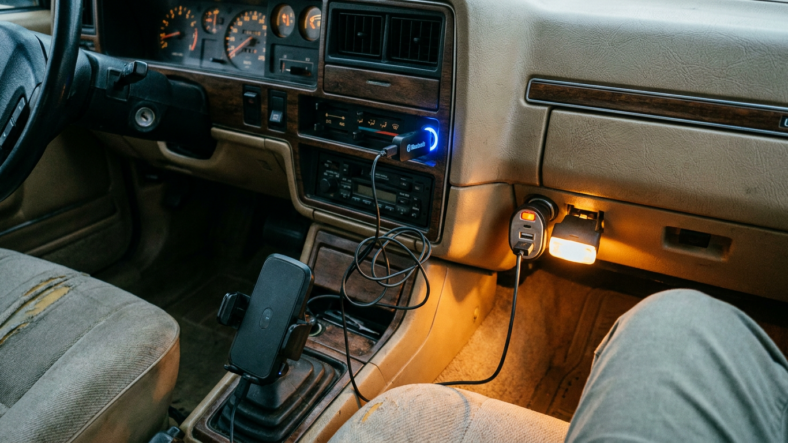
If you need a similar fix for a car stereo without Bluetooth, the logic carries over almost exactly to this guide to bluetooth car adapters.
Frequently Asked Questions
Can I use one bluetooth transmitter for TV and other devices?
Yes, as long as the new source has a matching port. Most transmitters unplug and move between a TV, a laptop, or a stereo without any setup changes.
Why does my TV have no sound after connecting the transmitter?
Check the TV’s audio output menu setting. Many models still route sound to internal speakers until you manually switch the output to optical or headphone jack.
Do I need aptX Low Latency for TV audio specifically?
You need it if watching dialogue-heavy shows or movies matters to you. Music and background audio tolerate standard Bluetooth delay much better than lip-synced video does.

Adriana Mercado is a writer who explores the intersection of science, futurism, and storytelling. She covers simulation theory, emerging technologies, strange biological discoveries, and the worlds created in sci-fi and fantasy. Her work focuses on curiosity, clear explanations, and uncovering ideas that sit just beyond the mainstream.