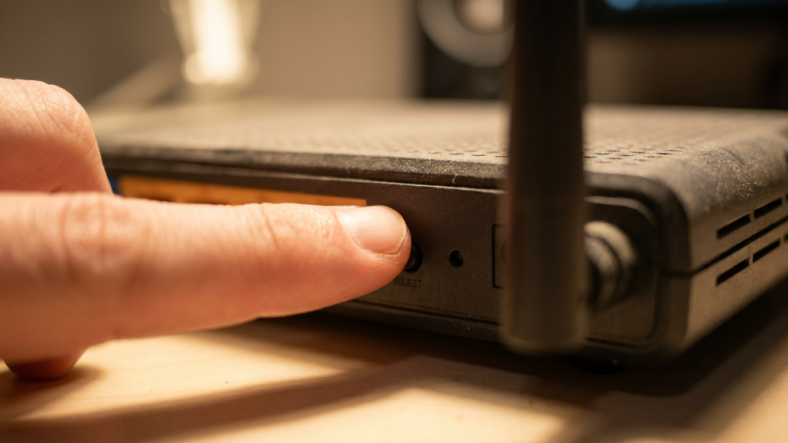


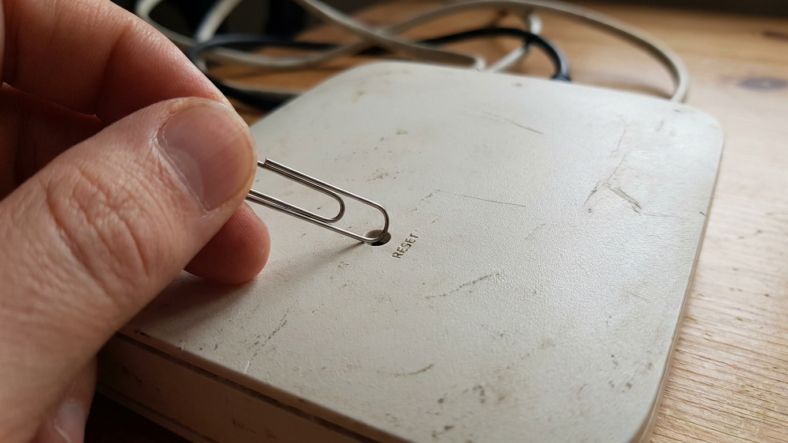
Press and hold the small recessed button on the back of your router for about ten seconds. That single action wipes the current admin password and puts the router back to its factory login, which is the fastest way back in when you are completely locked out.
This works whether you forgot a password you set months ago, inherited a router from a previous tenant, or never knew the login to begin with. No call to your internet provider needed.
Admin Login vs Wifi Password: Know the Difference
The wifi password lets a phone or laptop join your network. The admin password logs into the router’s settings dashboard, usually reached through a browser at an address like 192.168.1.1 or 192.168.0.1.
You can be locked out of the admin panel while wifi still works fine for everyone in the house. That is the exact scenario this reset fixes.
Find the Physical Reset Button First
Every consumer router has a small recessed button, usually on the back panel near the power port, set into the case so you cannot press it by accident.
You need something thin to reach it, a straightened paperclip or a SIM eject tool both work. Check the sticker on the underside of the unit if you cannot spot it; it often labels the button directly.
How to Reset the Admin Password
With the router powered on, insert the paperclip into the reset hole and hold for 10 to 15 seconds. The front lights will usually flicker, go dark, then settle into a different pattern once the reset completes.
Let go and give the router two to three minutes to fully reboot. Do not unplug it during this window, since cutting power mid-reset can corrupt the firmware.
This is the same mechanical step covered in our full guide on how to reset a router to factory settings, and it works even with zero memory of the old password.
Logging Back In With the Default Credentials
Once the router restarts, connect a device to its wifi (the network name usually reverts to factory default too) and open the login address in a browser. Check the sticker on the router for the correct address and default admin login, since both vary by brand and model.
Some routers print admin/admin or admin/password on that sticker, but never assume; read the actual label. Type in the printed credentials and you are back inside the dashboard.
What You Lose, and What to Set Up Right Away
A factory reset erases your custom wifi name, wifi password, port forwarding rules, and any parental controls. If losing those is a dealbreaker and you are not actually locked out, our guide on how to reset a router without losing your wifi settings covers a gentler option.
Once back in, set a new admin password you will actually remember, and write it down somewhere outside your phone’s notes app. Unsure whether the box on your shelf is a router, modem, or an all-in-one ISP unit? Our modem vs router vs gateway breakdown shows which device holds the admin panel you just reset.
Frequently Asked Questions
Does resetting the admin password delete my internet connection entirely?
No. Your internet service keeps working through your modem or ISP gateway; the reset only clears the router’s local settings and login, not your account with your provider.
What if the reset button does not seem to do anything?
Hold it longer, up to 20 seconds, and confirm the router has power the entire time. On some models you need the router already powered on before you press it, not powering it on during the press.
Can I avoid a full reset if I just forgot the wifi password, not the admin password?
Yes. If you can still log into the admin dashboard, you can view or change the wifi password from inside the settings without touching the reset button at all.

Adriana Mercado is a writer who explores the intersection of science, futurism, and storytelling. She covers simulation theory, emerging technologies, strange biological discoveries, and the worlds created in sci-fi and fantasy. Her work focuses on curiosity, clear explanations, and uncovering ideas that sit just beyond the mainstream.