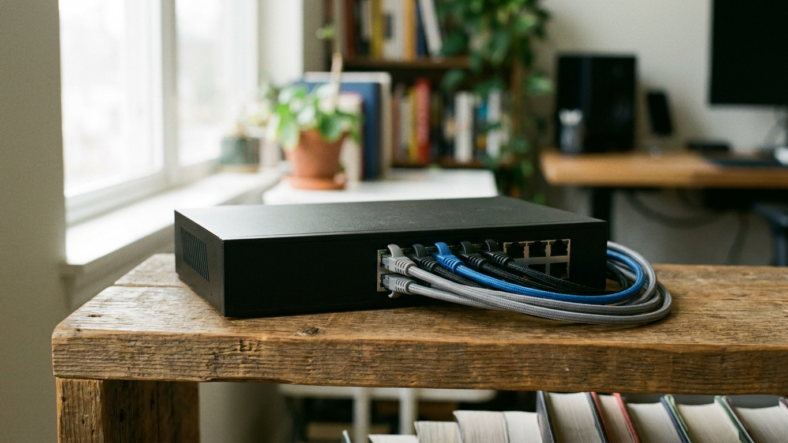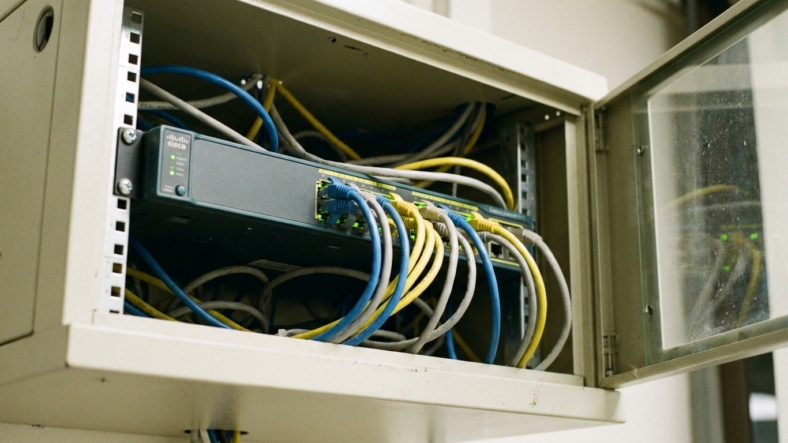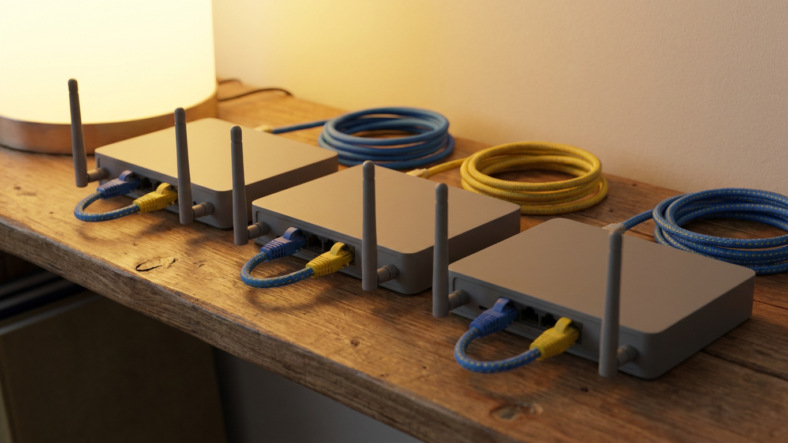


A soft reset, done by unplugging the router for 30 seconds and plugging it back in, clears temporary glitches without touching your wifi name, password, or settings. A factory reset wipes everything back to default and should only be used when a soft reset does not fix the problem.
Most connectivity issues, like a dropped connection or a device that will not load pages, only need the soft version.
The soft reset: your first move every time
Unplug the router from power completely, wait a full 30 seconds, then plug it back in and give it two to three minutes to fully reboot. This clears the router’s temporary memory and refreshes its connection to your ISP without erasing any configuration.
Your wifi name, password, connected devices, and port forwarding rules all stay exactly as they were. This is different from a modem reset, and understanding that distinction matters, which is why our explainer on router vs modem is worth reading if you are not sure which device is causing the issue.
When the pinhole reset button comes into play
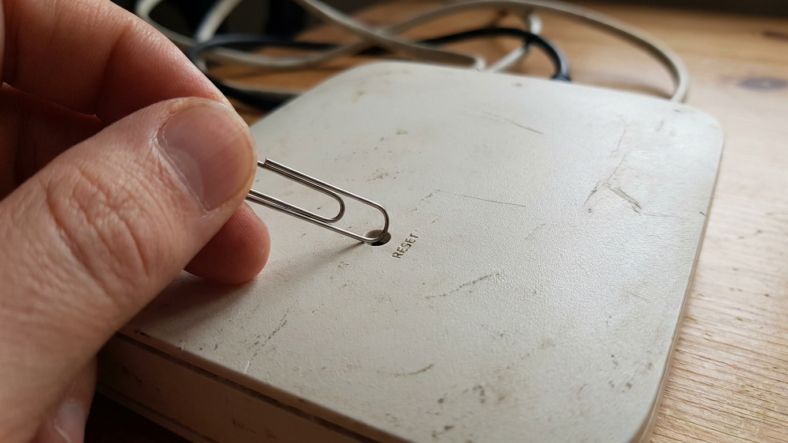
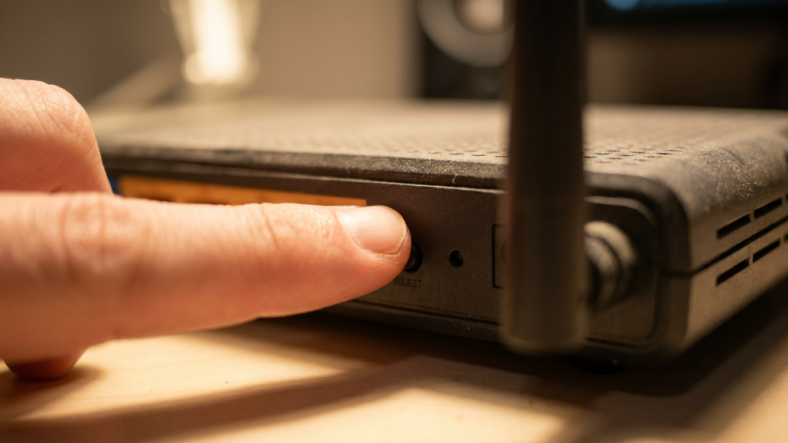
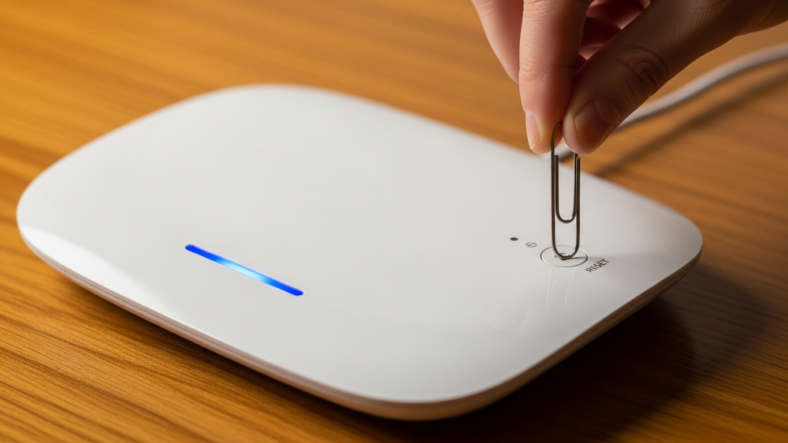
Most routers have a small recessed reset button that requires a pin or paperclip to press. A short press, usually under 5 seconds, often just reboots the router the same as unplugging it.
Holding that same button for 10 to 30 seconds, depending on the model, triggers a full factory reset instead. Check your router’s manual before pressing and holding, since the exact timing varies enough between brands to matter.
What a factory reset actually erases
A factory reset wipes your custom wifi name and password back to the sticker defaults, removes any port forwarding or firewall rules you configured, and disconnects every saved device. You will need to log back into the admin panel and set everything up again from scratch.
This is the nuclear option, appropriate for a router that will not respond at all, was recently exposed to malware, or is being sold or given away.
Backing up your settings before a factory reset
Most router admin panels have a backup or export configuration option, usually under an Administration or System tab. Save this file before resetting so you can restore your settings afterward instead of rebuilding your network from memory.
Write down your wifi name and password separately too, in case the backup file does not restore cleanly on an older firmware version.
Choosing the right fix for your problem
Slow speeds, one device losing connection, or general sluggishness usually resolve with a soft reset. Persistent login failures to the admin panel, forgotten passwords, or suspected security compromise call for a full factory reset instead.
Compare that same distinction from the other direction in our guide on modem vs router differences, since misdiagnosing which device is failing leads a lot of people to reset the wrong one. Browse more networking explainers on the Freezewall homepage.
Frequently asked questions
Will a soft reset delete my wifi password?
No. A soft reset only clears temporary memory and refreshes the connection. Your wifi name, password, and all saved settings remain untouched.
How long should I hold the reset button for a factory reset?
Typically 10 to 30 seconds, though this varies by brand and model. Check your router’s manual, since holding too briefly may just reboot it instead of resetting it.
Can I undo a factory reset once it happens?
Only if you exported a configuration backup beforehand. Without a backup file, you will need to manually reconfigure your wifi name, password, and any custom settings from scratch.

Adriana Mercado is a writer who explores the intersection of science, futurism, and storytelling. She covers simulation theory, emerging technologies, strange biological discoveries, and the worlds created in sci-fi and fantasy. Her work focuses on curiosity, clear explanations, and uncovering ideas that sit just beyond the mainstream.